





Transform jobs
Data Studio > Jobs
Jobs are scheduled runs of transforms based on the transform’s tags.
Transform tags
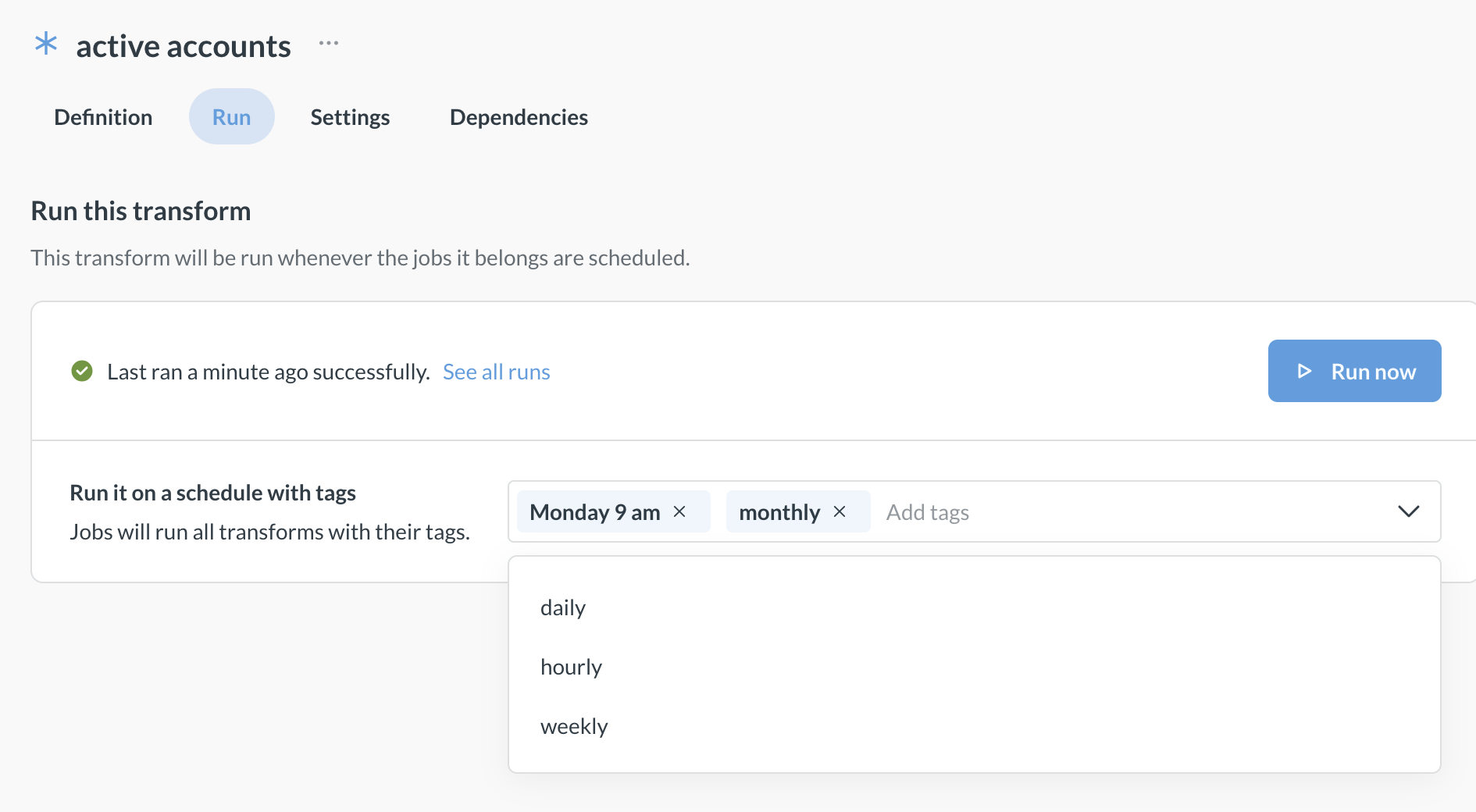
Add tags to transforms so that you can use jobs to run the transforms on a schedule. For example, you could add a “Nightly” tag to a transform, and have a job that runs all the transforms with the “Nightly” tag at midnight every day.
To add a tag to a transform:
- Make sure you have permissions to edit transforms.
- Visit the transform in Data studio > Transforms.
- On the Settings page for a transform, add transform tags.
By default, Metabase comes with hourly, daily, weekly, and monthly tags and jobs that are run on the corresponding schedules, but you can remove or rename those tags, or create new tags. To create a new tag, just type the new tag’s name in Tags field (either when viewing a transform or when viewing a job) and select Create a tag.
Once you’ve tagged a transform, you can create a job that uses that tag to run the transform on the job’s schedule.
Jobs
Data Studio > Jobs
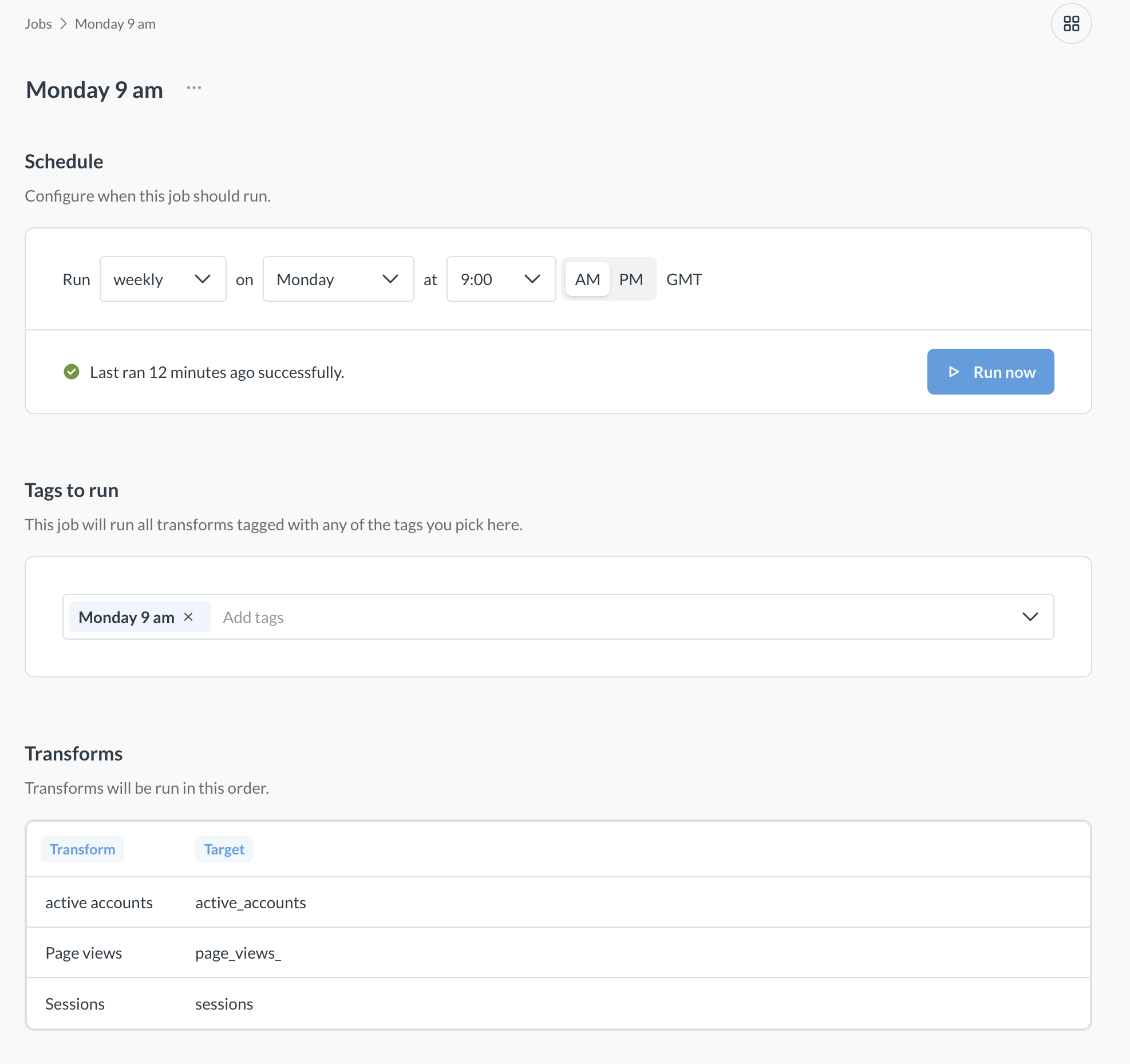
Jobs run one or more transforms on schedule based on transform tags.
Jobs have two components: schedule and tags.
- Schedule determines when the job will be executed: daily, hourly, etc. You can specify a custom cron schedule (e.g. “Every weekday at 9:05 AM”). The times are given in your Metabase’s system timezone.
- Tags determine which transforms a job runs, not when the job runs. For example, you can create a
Weekdaystag, add that tag to a few transforms, then create a job that runs all the transforms with theWeekdaystag every weekday at 9:05AM.
Jobs will run all transforms tagged with any of the tags, plus any transforms that the tagged transforms depend on that aren’t already up to date, see Jobs include all dependent transforms.
You can see which transforms a job will run and in which order on the job’s page.
See all jobs
To see all jobs, go to Data Studio and click the Jobs at the bottom of the left sidebar.
Create a job
To create a new job:
- Go to Data Studio > Jobs
- Click the + New button in the top right.
-
Specify the schedule: select one of the built-in schedules or use cron syntax to specify a custom schedule,
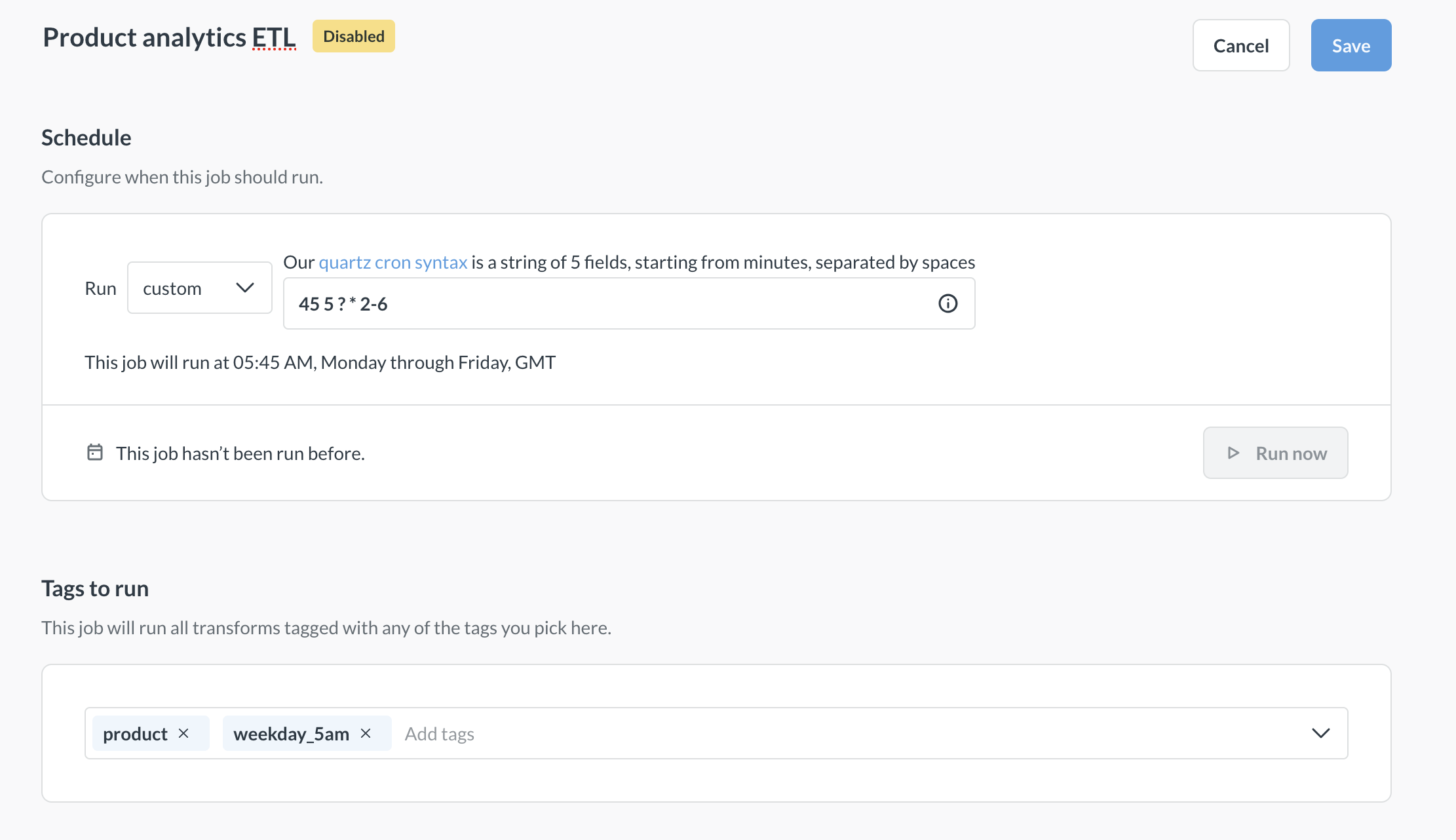
Job can use multiple tags, and will run all transforms that have any of those tags. For example, you can have a job “Weekend job” that is scheduled run at noon on Saturdays and Sundays that picks up all transforms tagged either “Saturday”, “Sunday”, or “Weekend”.
Disable jobs
You can disable jobs without deleting them. Unlike deletion (which is permanent), disabling a job just means it won’t run until you re-enable it. This is useful when you want to temporarily stop transforms from running - for example, for debugging purposes. This way you don’t your lose configuration settings like tags and schedules.
To disable a specific job:
- Go to Data studio > Jobs.
- Find the job you want to disable and click the three dots icon to the right of the job’s name.
- Select Disable
To disable all jobs:
- Go to Data studio > Jobs.
-
Click the three dots icon above the table with all the jobs, and select Disable all.
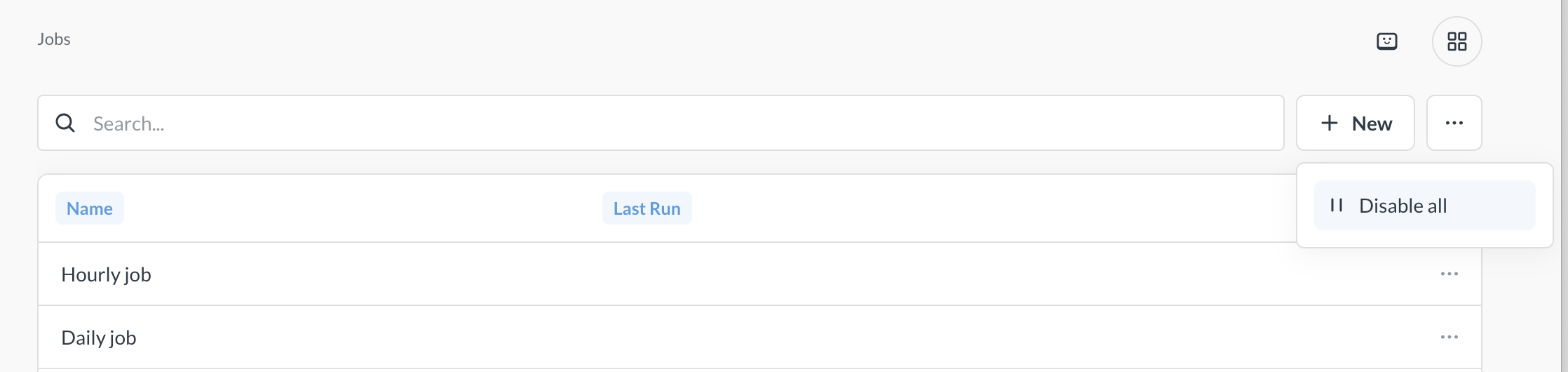
Even if you disable all jobs, new jobs will still be created enabled by default.
Re-enable jobs
If you disabled any jobs, you can later re-enable them:
To re-enable a specific job:
- Go to Data studio > Jobs.
- Find the job you want to re-enable and click the three dots icon to the right of the job’s name.
- Select Re-enable
To re-enable all jobs:
- Go to Data studio > Jobs.
- Click the three dots icon above the table with all the jobs, and select Re-enable all.
Delete a job
Deleting a job will not delete any transforms.
Deleted jobs can’t be restored. If you want to temporarily stop a job from running, consider disabling the job instead.
To delete a job:
- Go to Data Studio > Jobs.
- Find the job you want to delete and click the three dots icon to the right of the job’s name.
- Select Delete.
Jobs include all dependent transforms
If one transform depends on another, Metabase adds the dependency to the job and runs it first, even if that transform isn’t tagged in the job. So if transform B depends on A, Metabase makes sure A is up to date before running B.
Jobs skip dependencies that are already up to date
Metabase won’t re-run a dependency that’s still fresh. That way, a transform pulled into a frequent job doesn’t get rebuilt more often than its own schedule calls for. So, for example, if you tag transform A daily, and transform B hourly, and hourly B depends on daily A, then A runs on its own daily schedule. The hourly job that runs B won’t rerun A every hour.
Metabase skips a dependency when the dependency:
- Has its own tags and jobs, and none of those jobs’ schedules have come due since the dependency last ran successfully.
- Has no tags at all, and it’s already run successfully at least once.
See which transforms a job will run
The job’s page in Data Studio > Jobs lists every transform the job will run and in which order. The Notes column tells you when Metabase will skip a dependency, and flags dependencies that have no schedule of their own.
Runs
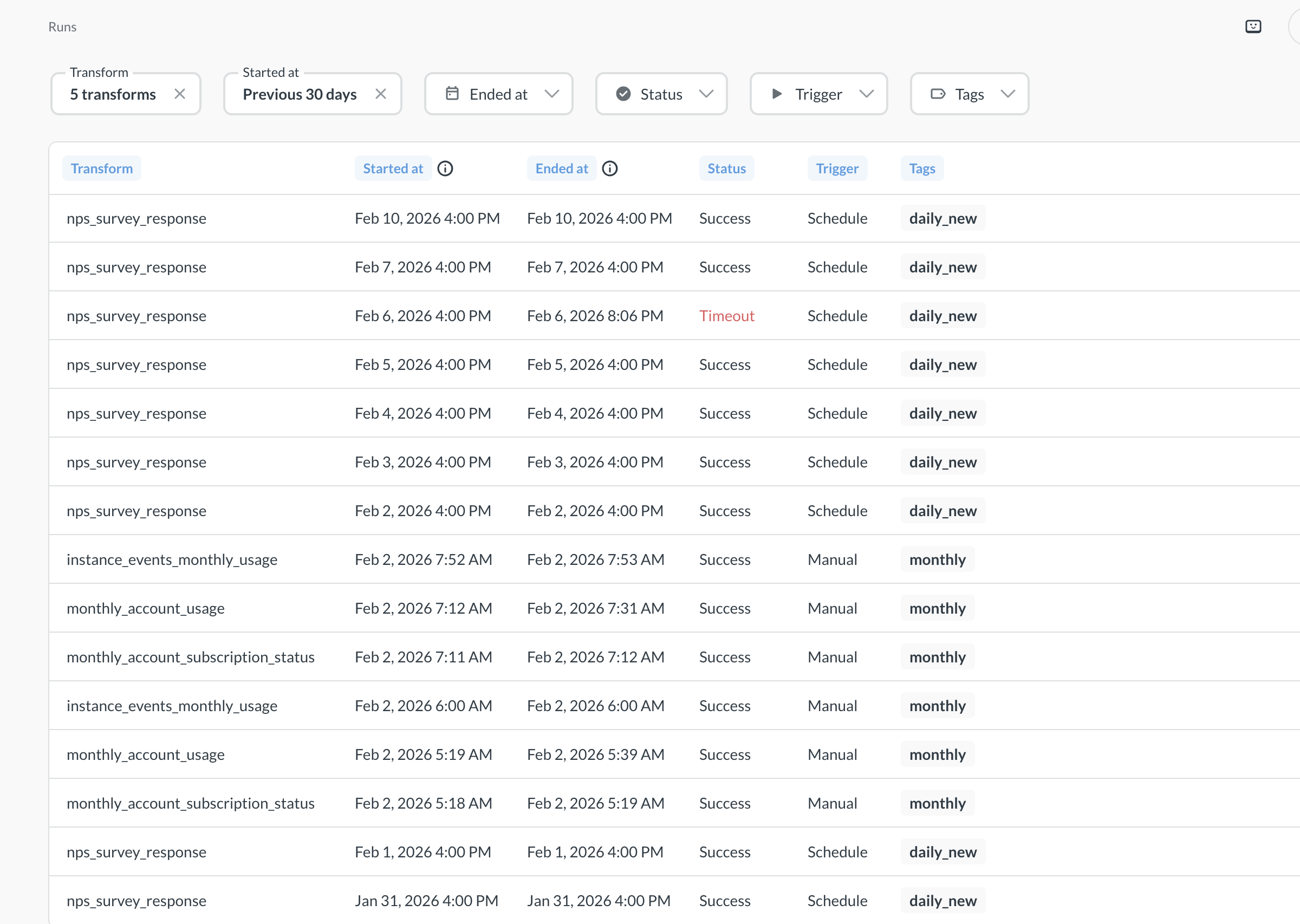
You can see all past and current transform runs (both manual and scheduled) by going to Data Studio and clicking on Runs at the bottom of the left sidebar. The transform run times will be given in Greenwich Mean Time (GMT).
You can click on any transform run to see more details about the run, like the error logs. To go to the transform definition from the transform run page, click on the icon next the transform name in the right sidebar.
The “Tags” column in the Runs table will only show the transform’s specific tags. But the run might not have anything to do with those tags. Another job with different tags could have run the transform because jobs include all dependent transforms.
Emails about failed transforms
If your Metabase is set up to send email, Metabase will let people know when transforms fail.
- Individual transform failures: when transforms fail during a scheduled job run, Metabase emails the last person to edit each failed transform (or the transform’s creator, or admins if neither is active). Each email covers a single job run.
- Daily digest of job failures: each morning, Metabase emails all admins a summary of the scheduled job runs that failed or timed out the previous day. Manual runs aren’t included in the digest, and Metabase skips the email entirely if no scheduled runs failed.
Read docs for other versions of Metabase.